How to Use Kimi K3.1 Pro for Free (and How It Compares to ChatGPT and Claude)
How to Use Kimi K3.1 Pro for Free (and How It Compares to ChatGPT and Claude)
Want to try one of the most talked-about AI models of 2026 without paying a cent? Kimi K3.1 Pro from Moonshot AI is available on a free plan, supports a 1-million-token context window, and has open weights you can download. This guide shows you every way to use it for free, what it is good at, and how it stacks up against ChatGPT and Claude.
What Is Kimi K3.1 Pro?

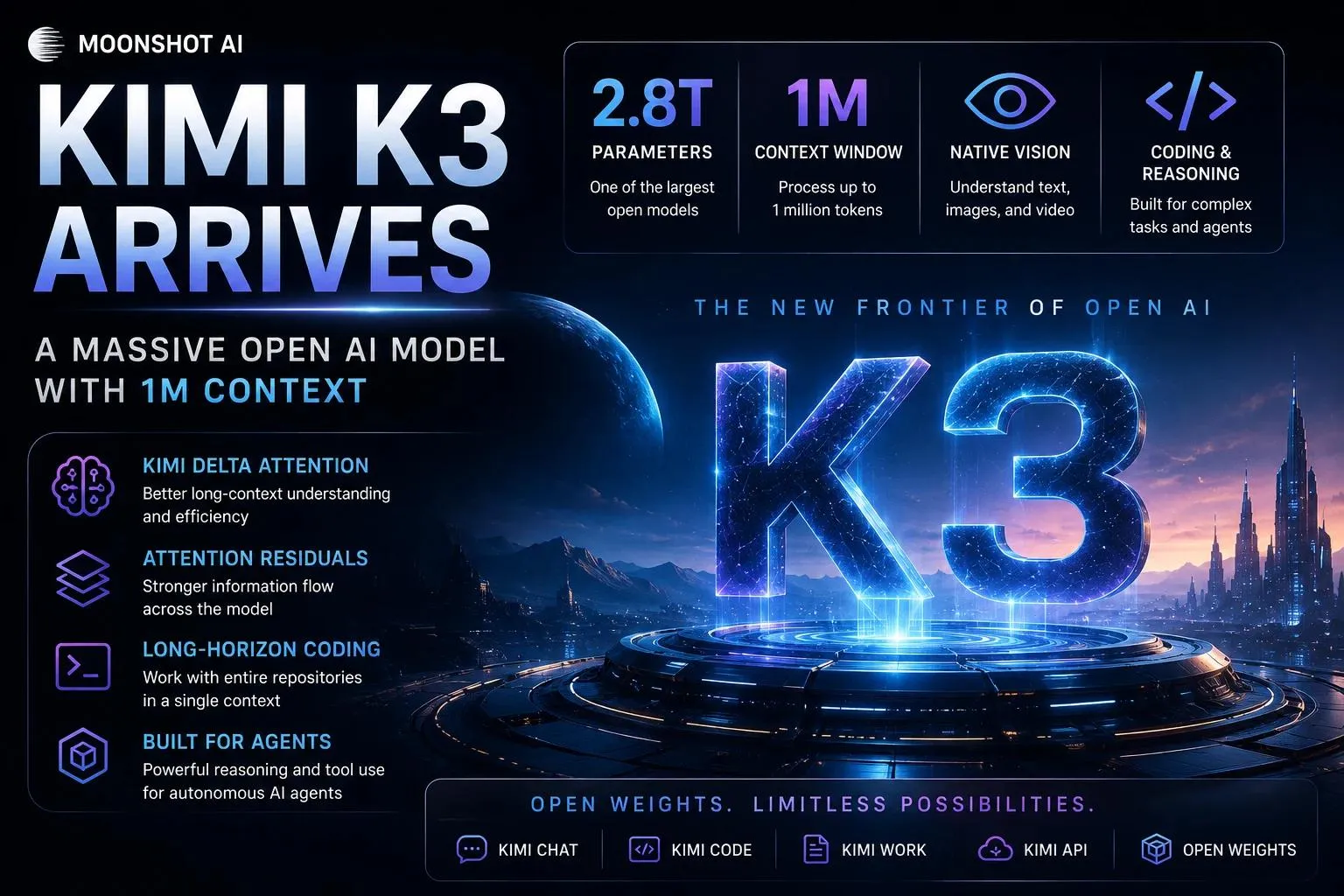
Kimi K3.1 Pro is the newest model in Moonshot AI’s Kimi family, released on October 23, 2026. It builds on Kimi K3 (launched July 16, 2026), a 2.8-trillion-parameter open-weight model with native vision support. K3.1 adds more reinforcement learning for coding, 3D creation, financial research and long-running agent tasks.
- Developer: Moonshot AI (backed by Alibaba and Tencent)
- Context window: 1 million tokens
- Inputs: text, images and video
- Variants: Kimi K3.1 Pro and the faster K3.1 Pro Highspeed
- Open weights: published in early November 2026
4 Ways to Use Kimi K3.1 Pro for Free
1. Kimi Website (Easiest)
- Open kimi.com in your browser.
- Create a free account or sign in.
- Choose Kimi K3.1 Pro from the model selector if it is not already the default.
- Start chatting, uploading files or pasting long documents.
2. Kimi Mobile Apps
Kimi has apps for iOS, Android and HarmonyOS. Sign in with the same account to use the model on your phone under the same free plan.
3. Kimi Work and Kimi Code
K3.1 Pro also runs in Kimi Work (reports, dashboards, presentations) and Kimi Code (coding agent). Moonshot’s pricing page lists the model on the free plan with limited usage for the web and Kimi Work.
4. API and Third-Party Platforms
Developers can call the model through the Kimi API at platform.kimi.ai using the model name kimi-k3.1-pro. The API is compatible with OpenAI-style and Anthropic-style clients, so most existing code needs only a new base URL and key.
model = "kimi-k3.1-pro"API usage is billed, so check the pricing page before building anything big.
Can You Run It Locally?

Moonshot has released the open weights on Hugging Face, but the model has 2.8 trillion parameters. Running it yourself needs a multi-GPU server, not a normal PC. For most people the free web app or the API is the realistic option. Always read the license on the model card before using the weights commercially.
Kimi K3.1 Pro vs ChatGPT vs Claude
- Price: Kimi, ChatGPT and Claude all have free tiers with usage limits. Kimi’s advantage is that its newest model is available on the free plan and the weights are open.
- Context length: Kimi offers 1 million tokens, which is great for long reports, codebases and research papers.
- Coding and agents: Moonshot positions K3.1 as strong at long engineering sessions and terminal tool use. Independent coding leaderboards have ranked it among the top labs.
- Benchmarks: Moonshot’s own tests claim wins over several US frontier models on some benchmarks. Treat vendor numbers carefully, because independent rankings put it near the top but not clearly above the best closed models.
- Openness: This is the biggest difference. Kimi’s weights are downloadable, while ChatGPT and Claude are closed and available only through their own apps and APIs.
- Privacy: Kimi is run by a Chinese company. Avoid pasting passwords, client data or anything confidential, and check the privacy policy first.
Which One Should You Choose?
- Pick Kimi if you want a free, powerful model for long documents, coding experiments and presentations.
- Pick ChatGPT if you want the widest set of consumer features and plugins.
- Pick Claude if you want careful writing, analysis and coding help from a closed, privacy-focused provider.
- Try all three with the same prompt. Free tiers make this easy.
Tips for Getting the Most From the Free Plan
- Use it for big, high-value tasks such as summarizing long files, and save small questions for lighter tools.
- Give clear, detailed prompts so you do not waste messages on retries.
- Upload documents instead of pasting text in pieces, since the large context window can handle them in one go.
Frequently Asked Questions
Is this guide beginner friendly?
Yes. This tutorial is written step-by-step for beginners.
Does this work in 2026?
Yes. This article is updated regularly with latest changes.
Where can I learn more?
Browse more tutorials on LoopGuy.





Comments (0)
No comments yet. Be the first to comment!
Leave a Comment