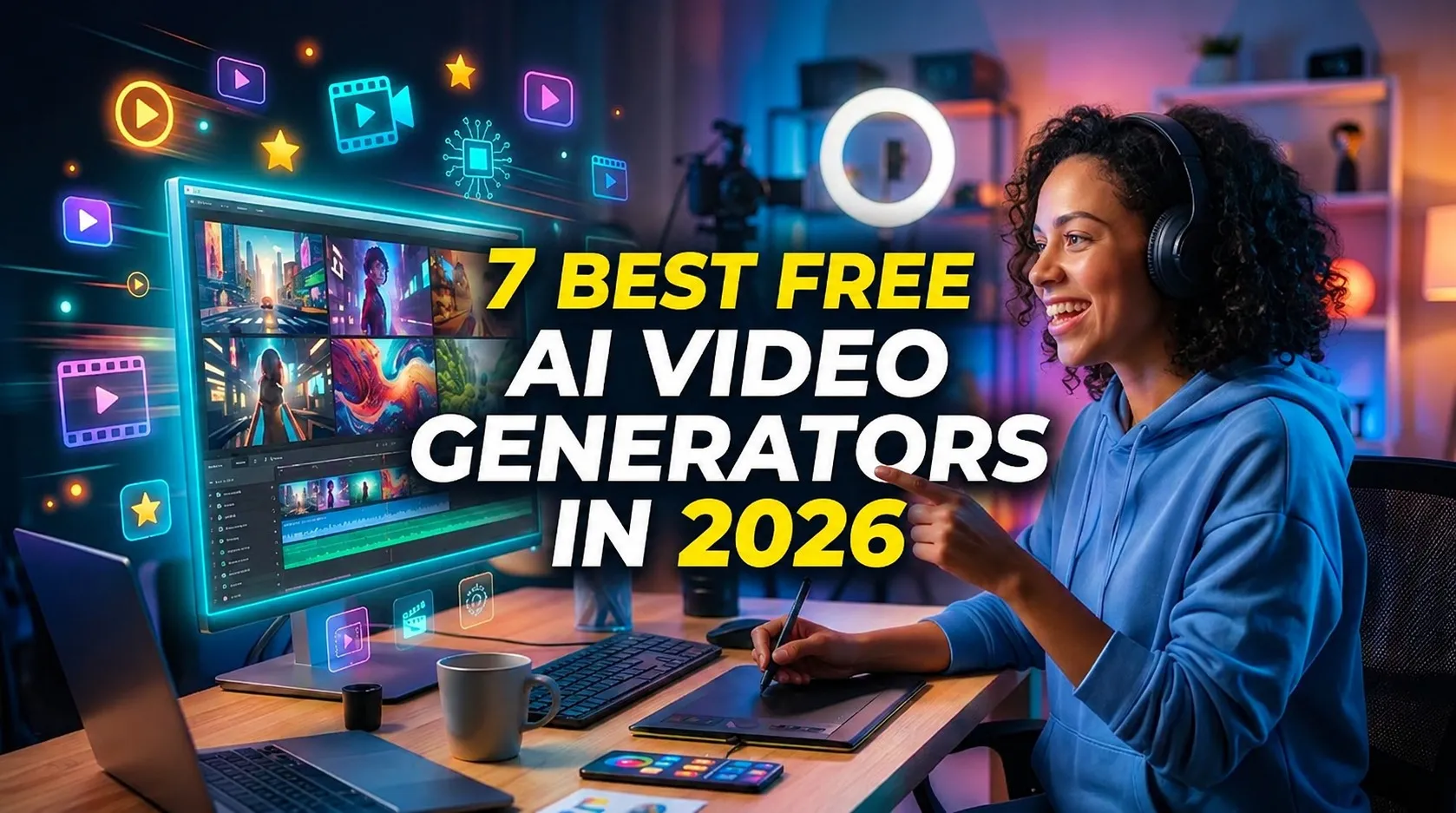
Best Free AI Video Generators in 2026: Create Videos Without Editing Skills
Best Free AI Video Generators in 2026: Create Videos Without Editing Skills
Creating professional-looking videos no longer requires expensive editing software, advanced technical skills, or hours of manual work. Thanks to artificial intelligence, anyone can now turn simple text prompts, images, and ideas into impressive videos within minutes.
In 2026, AI video generators have become increasingly powerful. Tools such as Google Flow, Kling AI, Runway, Hailuo AI, CapCut, and Canva offer different ways to generate videos, animate images, add effects, and create content for social media.
However, not every tool advertised as free actually provides unlimited video generation. Some offer daily credits, others provide one-time trial credits, and several restrict resolution, downloads, or watermark removal.
In this guide, we'll explore the best free AI video generators in 2026, compare their free plans, video quality, watermarks, and limitations, and explain how beginners can create videos without professional editing skills.
Best Free AI Video Generators in 2026: Quick Comparison
Before exploring each platform, here's a quick comparison of the most interesting AI video tools available in 2026.
| AI Tool | Best For | Free Access | Main Limitation |
|---|---|---|---|
| Google Flow | Cinematic AI videos | 50 daily credits | Generation costs vary by model |
| Kling AI | Realistic video generation | Limited account-dependent access | Credits and queue restrictions |
| Runway | Professional AI video creation | 125 one-time credits | Credits do not refresh |
| Hailuo AI | Realistic motion and animation | Limited free access | Credits and watermark restrictions |
| CapCut | Social media video editing | Free editor and selected AI tools | Premium assets and AI limits |
| Canva | Beginner-friendly video creation | Limited AI access | Advanced video generation requires paid access |
| Pika | Creative video effects | Free account; no monthly credits listed | Additional credits require payment |
Important: Free-plan information is based on publicly available plan details checked in November 2026. Some providers change their allowances frequently or display account-specific offers. A free account does not necessarily mean free video generations.
1. Google Flow – Best for Cinematic AI Videos
Website: Google Flow
Google Flow is one of the most interesting AI video creation platforms in 2026. Developed by Google, it combines advanced generative models with creative tools that allow users to turn text prompts and reference images into cinematic video scenes.
Unlike traditional video editors, Flow focuses on generating visual content using artificial intelligence. You can describe a scene, select a generation model, and let AI create the video.

Key Features
- Text-to-video generation.
- Image-to-video generation.
- Frames-to-video creation.
- Video extension and editing.
- Scene building and character consistency tools.
- Access to supported Google video models, including Veo.
Free Plan and Limitations
Google Flow offers a free allowance of 50 daily Flow credits to eligible users without a Google AI subscription.
However, credits are consumed differently depending on the selected model and generation settings. Some advanced creative features may also require a paid subscription.
- Free daily credits: 50.
- Video generation: Available through supported models.
- Resolution: Depends on the selected generation and export option.
- Watermark: Google uses SynthID technology for AI-generated content; visible branding and export conditions can vary.
- Commercial usage: Check Google's applicable terms.
How to Create a Video Using Google Flow
- Visit Google Flow.
- Sign in using your Google account.
- Create a new project.
- Choose a supported video generation option.
- Enter a detailed description of the video you want to create.
- Select your preferred generation settings and model.
- Click Generate and wait for the video to finish processing.
- Preview the result and download it if your account supports the selected export.
Best For: Content creators, filmmakers, social media creators, and anyone interested in cinematic AI-generated videos.
2. Kling AI – Best for Realistic AI Video Generation
Website: Kling AI
Kling AI has become a popular choice for generating realistic videos from text descriptions and images. Its video models are designed to create natural movements, cinematic camera angles, and detailed scenes.
One of its biggest advantages is image-to-video generation. You can upload a photograph or AI-generated image and instruct Kling to animate the subject.
 Key Features
- Text-to-video generation.
- Image-to-video animation.
- Realistic character movements.
- Cinematic camera motion.
- Reference-based generation.
- Video extension and creative controls on supported models.
Free Plan and Limitations
Kling provides free-account access, but the available credits and generation opportunities can vary by account, region, and promotional offer.
- Free access: Limited generation allowance.
- Video quality: Depends on the selected model and settings.
- Watermark: Check the export settings for your account.
- Generation speed: Free users may experience waiting queues.
- Commercial usage: Check the applicable plan and licensing terms.
Because free allowances can change, check the credit balance displayed inside your Kling account before starting a large project.
How to Create a Video Using Kling AI
- Open the Kling AI website.
- Create an account or sign in.
- Select Text to Video or Image to Video.
- Enter your prompt or upload a reference image.
- Choose the available duration and quality settings.
- Click Generate.
- Preview your video and download it if your free plan allows.
Best For: Realistic animations, product demonstrations, cinematic scenes, and social media content.
3. Runway – Best for Professional AI Video Creation
Website: Runway
Runway is a powerful creative platform designed for people who want more control over AI-generated video content. It provides several AI tools for video generation, image creation, editing, and visual effects.
Its advanced video models can generate short clips from text prompts and images, making it useful for filmmakers, designers, and professional content creators.
 Key Features
- Text-to-video generation.
- Image-to-video generation.
- AI-powered video editing tools.
- Visual effects and creative controls.
- AI image generation.
- Video enhancement and upscaling features.
Free Plan and Limitations
Runway provides a free plan with a one-time deposit of 125 credits. These credits do not expire, but they also do not refresh every month.
Credit consumption depends on the selected model and operation. For example, Runway documents a cost of 12 credits per second for Gen-4.5 video generation.
- Free credits: 125 one-time credits.
- Monthly renewal: No.
- Video generation: Available subject to eligible model access and credit balance.
- Watermark: Free-plan video exports carry Runway branding.
- Commercial usage: Review the current licensing terms.
How to Create a Video Using Runway
- Visit Runway's official website.
- Sign up for a free account.
- Open the available video generation tool.
- Enter a text prompt or upload an image.
- Choose your preferred generation model.
- Adjust the available video settings.
- Generate and preview the result.
- Download the finished video if your account has sufficient credits.
Best For: Designers, filmmakers, advertising professionals, and creators experimenting with advanced AI video tools.
4. Hailuo AI – Best for Natural Movement and Animation
Website: Hailuo AI
Hailuo AI, developed by MiniMax, is another interesting platform for generating videos using text prompts and reference images.
It is particularly useful when you want to transform a static image into an animated scene or create short cinematic clips without manually editing every frame.
 Key Features
- Text-to-video generation.
- Image-to-video animation.
- Natural-looking subject movement.
- Cinematic visual effects.
- Character and scene animation.
- Multiple generation options depending on the available model.
Free Plan and Limitations
Hailuo offers limited free access, with available credits and promotions depending on the account and current offer.
- Free access: Limited credits or promotional allowance.
- Video duration: Depends on the selected model.
- Watermark: Free exports may include branding.
- Generation speed: Can vary with server demand.
- Commercial usage: Check the current account terms.
Do not assume that free credits are unlimited or automatically renewed. Check the expiration date and balance before generating videos.
How to Create a Video Using Hailuo AI
- Open Hailuo AI.
- Create an account.
- Select Text-to-Video or Image-to-Video.
- Write a description of your desired scene.
- Upload an image if you want to animate an existing picture.
- Choose the available generation settings.
- Click Generate and wait for the result.
- Preview and download the video if your account permits.
Best For: Beginners, social media creators, animated photographs, and short cinematic clips.
5. CapCut – Best Free AI Video Editor for Beginners
Website: CapCut
CapCut is different from dedicated AI video generators because it combines traditional video editing with AI-powered creative tools.
It is especially popular among TikTok, YouTube Shorts, and Instagram Reels creators who need an easy way to edit and publish videos.
You can use CapCut to organize AI-generated clips, add automatic captions, include background music, apply transitions, and export finished videos.
 Key Features
- AI video generation tools on supported workflows.
- Automatic captions and subtitles.
- AI voice and text-to-speech features.
- Background removal.
- Templates and transitions.
- Music and sound effects.
- Video resizing for social media platforms.
- Timeline-based video editing.
Free Plan and Limitations
CapCut provides a free video editor with basic editing features and selected AI tools. However, not every AI generation feature is unlimited or included in every free account.
- Free editing: Yes.
- AI generation: Available through selected tools and allowances.
- Watermark: Standard exports can be watermark-free when using eligible free assets and removing default ending clips.
- Resolution: Depends on the export settings and account.
- Premium features: Require a paid subscription.
One important detail: using a Pro template, premium effect, or paid asset can trigger an upgrade requirement or affect the export. Always inspect your timeline before exporting.
How to Create a Video Using CapCut
- Visit CapCut.
- Sign in using your preferred account.
- Open the AI video tool or create a new editing project.
- Upload your AI-generated video clips or images.
- Add captions, music, transitions, and visual effects.
- Adjust the video dimensions for YouTube, TikTok, or Instagram.
- Preview the entire project.
- Remove any unwanted ending watermark clip or premium-only assets.
- Export using the resolution available on your account.
Best For: Beginners, TikTok creators, YouTubers, Instagram creators, and anyone who wants to finish videos without learning complicated editing software.
6. Canva – Best for Simple AI Video Designs
Website: Canva
Canva is one of the easiest platforms for people who want to create attractive videos without learning professional editing software.
It offers thousands of templates, stock media, animations, text effects, and AI-powered design features. You can combine these tools to create promotional videos, presentations, advertisements, and social media content.
 Key Features
- Ready-made video templates.
- Drag-and-drop video editor.
- Text animations and transitions.
- Stock videos and audio.
- AI-powered image and video tools.
- Social media video formats.
- Branding and design customization.
Free Plan and Limitations
Canva offers a free plan with basic editing tools, templates, and limited AI access.
However, its advanced AI video generation capabilities are not all available to free users. Some image-to-video functionality may be available within the free AI allowance, while more advanced text-to-video capabilities require eligible paid access.
- Free account: Yes.
- Basic video editing: Yes.
- AI video generation: Limited and feature-dependent.
- Premium templates: Require Canva Pro.
- Watermark: Free elements can be exported without a watermark; paid elements may require a subscription.
- Commercial usage: Subject to Canva's content licensing terms.
How to Create a Video Using Canva
- Visit Canva.
- Sign in or create a free account.
- Search for Video in the template section.
- Select a suitable video template.
- Upload your images, clips, and other media.
- Add text, animations, music, and transitions.
- Use available AI tools if your account supports them.
- Preview your design and export the finished video.
Best For: Students, marketers, small businesses, social media managers, and beginners who want attractive videos using templates.
7. Pika – Best for Creative AI Video Effects
Website: Pika
Pika is an AI-powered creative platform that focuses on generating and transforming short videos. It is known for experimental effects and creative visual transformations.
Instead of relying entirely on traditional editing, users can experiment with prompts and AI-powered effects to create unusual and entertaining clips.
 Key Features
- Text-to-video generation on supported models.
- Image-to-video generation.
- AI-powered video transformations.
- Creative effects and animations.
- Multiple video models.
- Experimental visual content creation.
Free Plan and Limitations
Pika offers a free account, but its current pricing page lists zero monthly credits for the free tier. Additional generation requires purchased credit packs or an eligible paid subscription.
- Free account: Yes.
- Monthly generation credits: 0 on the listed Free plan.
- Watermark: No watermark is listed as a free-plan benefit.
- Commercial license: Not included in the free plan.
- Priority generation: Not included.
This distinction matters: a free account without generation credits is not the same as unlimited free video generation.
How to Use Pika
- Visit Pika.
- Create an account.
- Explore the available video models and effects.
- Check whether your account has usable credits.
- Enter a prompt or upload a reference image.
- Adjust the available settings.
- Generate your clip when credits are available.
- Preview and export the result according to your plan.
Best For: Creative experiments, stylized videos, social media effects, and users interested in AI-powered visual transformations.
Free AI Video Generators: Which One Has the Best Free Plan?
Choosing a free AI video generator requires looking beyond the advertised features. The number of credits, watermark policy, export resolution, and commercial rights can make a major difference.
Here is a practical comparison based on the publicly available plan information.
| Tool | Free Allowance | Watermark | Important Restriction |
|---|---|---|---|
| Google Flow | 50 daily credits | Invisible SynthID; export conditions vary | Credits depend on model and generation |
| Kling AI | Account-dependent | Check export settings | Changing quotas and queues |
| Runway | 125 one-time credits | Yes | No monthly credit renewal |
| Hailuo AI | Limited free access | May be included | Credits and promotions vary |
| CapCut | Free editor and selected AI tools | Can be removed on eligible exports | Premium assets and AI limits |
| Canva | Limited AI allowance | Free elements export cleanly | Advanced AI tools require paid access |
| Pika | 0 monthly credits | No watermark listed | Generation requires purchased credits |
Our Recommendation: Start with Google Flow if you want to experiment with generated video scenes. Try Kling for image animation, and use CapCut to combine clips, add subtitles, and prepare your final social media video.
How to Create an AI Video Without Editing Skills
You do not need to be a professional video editor to create attractive videos with AI. The process can be broken down into a few simple steps.
Step 1: Choose a Video Idea
Start with a clear idea. For example, you might want to create:
- A cinematic nature video.
- A futuristic city animation.
- A product advertisement.
- A short educational video.
- A YouTube Shorts video.
- An animated storytelling clip.
Step 2: Write a Detailed AI Prompt
The quality of an AI-generated video depends heavily on the instructions you provide.
Instead of writing a basic prompt such as "A car driving," describe the scene, environment, camera movement, lighting, and visual style.
Example AI Video Prompt:
A cinematic shot of a futuristic sports car
driving through a neon-lit city at night.
Rain falling on the streets, colorful reflections,
smooth camera tracking, realistic lighting,
high-detail environment, dramatic atmosphere,
professional cinematic quality, 16:9 aspect ratio.
Step 3: Generate the Video
Open your preferred AI video generator, paste the prompt, select the available settings, and click Generate.
Some tools also allow you to upload a reference image. This is useful when you want the video to follow a particular character, product, or visual style.
Step 4: Review and Improve the Result
AI-generated videos are not always perfect on the first attempt. Subjects may move unnaturally, objects can change shape, and small details may appear inconsistent.
Review your clip carefully. If the result does not match your expectations, simplify the prompt or adjust the camera movement and scene description.
Step 5: Edit and Export Using CapCut
Once you have generated your clips, import them into CapCut.
Add subtitles, background music, transitions, and other elements. Remove any unwanted ending clips or premium assets that trigger watermark or upgrade restrictions.
Finally, select an export resolution supported by your account and download the finished video.
Tips for Getting Better Results From Free AI Video Generators
Free AI video tools often have limited credits, so it is important to use them efficiently.
- Keep Prompts Specific: Describe the subject, movement, lighting, environment, and camera angle.
- Start With Short Clips: Generate short scenes before attempting a longer video.
- Use Reference Images: Uploading a suitable image can help maintain the desired visual direction.
- Avoid Unnecessary Generations: Plan the scene before using credits.
- Compare Multiple Tools: The same prompt can produce very different results across platforms.
- Check Watermarks: Always inspect the downloaded file instead of relying on a tool's marketing claims.
- Verify Commercial Rights: Free personal-use access does not automatically allow commercial publishing.
- Save Your Best Prompts: Keep successful prompts so you can reuse and improve them later.
Frequently Asked Questions (FAQs)
1. What is the best free AI video generator in 2026?
Google Flow is a strong option for AI-generated cinematic videos, while Kling AI is useful for realistic image animation. CapCut is a practical choice for editing and finishing videos. The best option depends on your requirements and available free credits.
2. Can I generate AI videos without editing skills?
Yes. Platforms such as Google Flow, Kling AI, and Hailuo can generate video clips from text prompts or images. You can use beginner-friendly editors like CapCut to combine and finish the videos.
3. Which AI video generator is completely free?
Several platforms offer free access, but most have restrictions. Google Flow provides daily credits, Runway offers one-time credits, and CapCut offers free editing tools. Unlimited free high-quality AI video generation is uncommon.
4. Which AI video generator does not add a watermark?
Watermark policies differ by tool and subscription. CapCut can export eligible projects without a watermark, while Pika lists no watermark on its free account. However, Pika's free plan currently does not include monthly generation credits.
5. Can I use AI-generated videos on YouTube?
Yes, provided you follow the platform's rules and the AI tool's licensing terms. YouTube may require disclosure for realistic altered or synthetic content. Always review the applicable monetization and copyright requirements.
6. What is the difference between text-to-video and image-to-video?
Text-to-video creates a video from a written description. Image-to-video takes an existing picture and animates it, adding movement and visual effects.
7. Which AI video generator is best for TikTok and YouTube Shorts?
CapCut is particularly useful for editing vertical videos, adding automatic captions, and preparing content for TikTok and YouTube Shorts. You can combine it with Google Flow or Kling AI to generate the original video clips.
8. Can AI video generators create long videos?
Most AI video generators specialize in short clips. You can combine multiple generated scenes using an editor such as CapCut to create longer videos.
9. Do free AI video generators allow commercial use?
Not necessarily. Some free plans restrict commercial usage or require paid subscriptions for commercial licenses. Check the terms of each platform before using generated videos in advertisements or monetized projects.
Final Verdict: Which Free AI Video Generator Should You Use?
AI video generation has become more accessible in 2026, making it possible for beginners to create impressive videos without investing in expensive editing software or learning complicated production techniques.
However, every platform has different strengths and limitations.
- Google Flow: A strong starting point for cinematic AI video generation.
- Kling AI: Useful for realistic movements and image-to-video animation.
- Runway: Suitable for advanced creative workflows and professional experimentation.
- Hailuo AI: Worth exploring for animated scenes and natural-looking movement.
- CapCut: Best for editing, captions, and finishing social media videos.
- Canva: Ideal for template-based videos and simple marketing content.
- Pika: Interesting for creative effects, although free generation credits are not included in its listed free plan.
If you are a beginner, start with Google Flow or Kling AI for generating clips and use CapCut to assemble your final video. You can experiment with different prompts and styles before spending money on premium subscriptions.
The best strategy is to choose a tool based on the video you want to create, not simply the number of free credits advertised.
Stay connected with LoopGuy for more AI tools, technology tutorials, software guides, and the latest artificial intelligence updates.
Frequently Asked Questions
Is this guide beginner friendly?
Yes. This tutorial is written step-by-step for beginners.
Does this work in 2026?
Yes. This article is updated regularly with latest changes.
Where can I learn more?
Browse more tutorials on LoopGuy.



Comments (0)
No comments yet. Be the first to comment!
Leave a Comment