How to Create Custom Widgets on Pixel with Gemini (Create My Widget Guide)
How to Create Custom Widgets on Pixel with Gemini – Create My Widget Guide
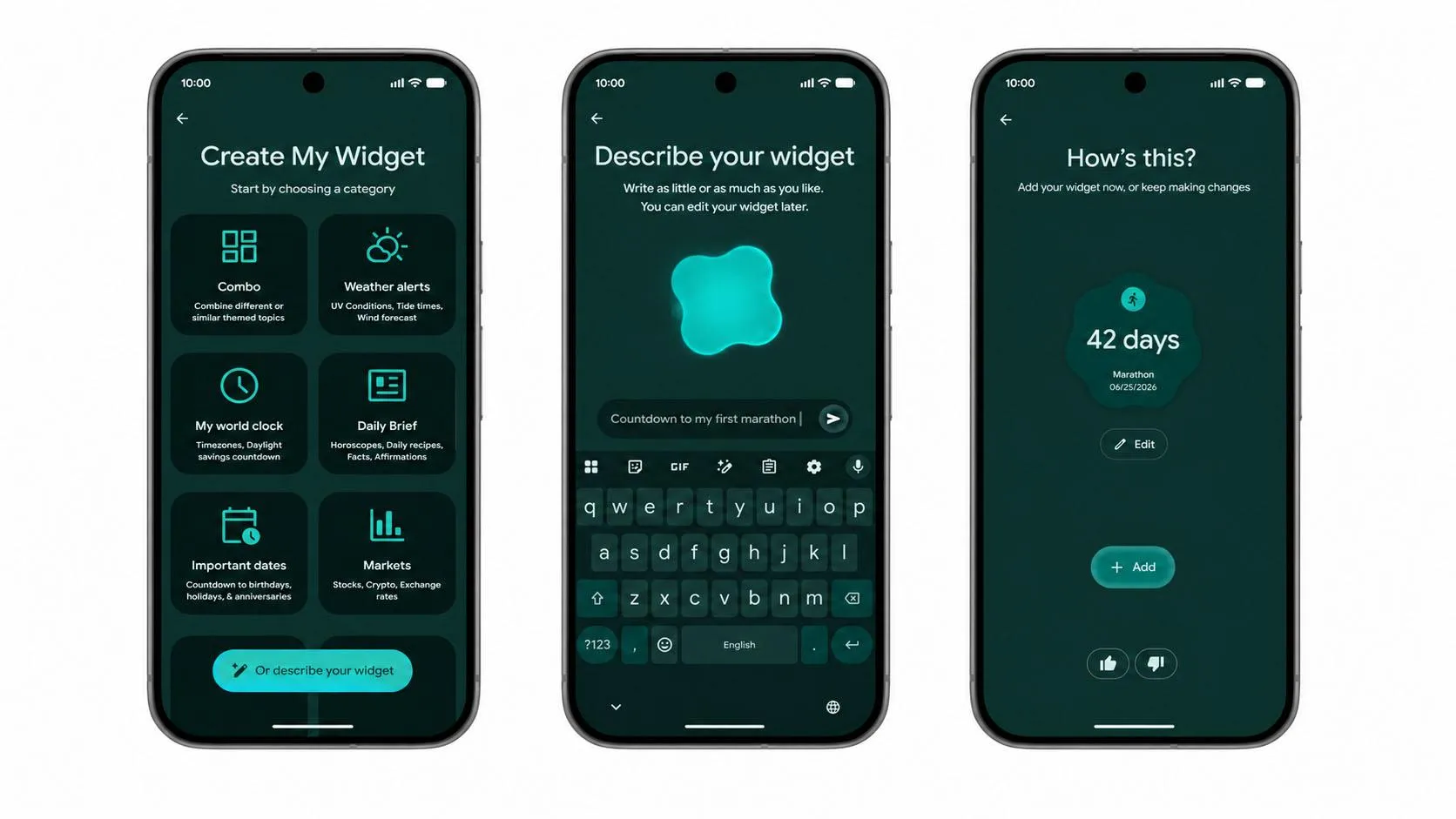
Ever wanted a widget that simply does not exist? With the November 2026 Pixel Drop, you can now describe a widget in plain words and let Gemini build it for you. A trip countdown, a monthly spending tracker or a game-day widget in your team’s colors are all fair game. This quick guide covers which phones support it, how to use it and some prompts to try.
Which Pixel Phones Support Custom Widgets?

- Supported: Pixel 10, Pixel 10 Pro, Pixel 10 Pro XL, Pixel 10 Pro Fold and the Pixel 11 series.
- Not supported: Pixel 10a and older Pixel phones.
- Coming later: Google says custom widgets are also heading to Pixel Watch 4 and Pixel Watch 5.
Google started rolling out the November Pixel Drop on November 10 and says it arrives in waves over several weeks, so your phone may not have it on day one.
Before You Start
- Open Settings → System → System update and install the latest Pixel update.
- Make sure the Gemini app is installed and up to date from the Play Store.
- Sign in with your Google account and keep an internet connection on, since Gemini builds the widget.
How to Build a Custom Widget
- Long-press an empty spot on your home screen.
- Tap Widgets and look for the Create My Widget option.
- Type (or speak) a description of the widget you want.
- Review the preview that Gemini generates.
- Ask for changes if needed, such as a different color, layout or data source.
- Tap to add it to your home screen.
Prompt Ideas to Try
Google’s own examples show the range of what is possible. Be specific about what you want to see and how it should look.
- Spending tracker: “Create a widget that shows my monthly shopping spend with a progress bar and a warning color when I pass my budget.”
- Trip countdown: “Make a getaway countdown widget that shows the days left and pulls in my flight and reservation details.”
- Game day widget: “Build a game-day widget in my team’s colors with the next match and kickoff time.”
- Daily routine: “Create a simple widget showing my prayer times and next appointment in a clean dark style.”
Tips for Better Results
- Start with one job per widget rather than packing everything into one.
- Name the style you want (minimal, dark, colorful) and the size (small or wide).
- If the first version is off, refine it in follow-up prompts instead of starting over.
- Pair it with the drop’s new custom icon styles (10 options on Pixel 6a and newer) for a matching home screen.
Is It Available in Pakistan?
Custom widgets are listed as a global feature, but language support is limited to selected languages, and Gemini features sometimes launch in some countries before others. If you use an imported Pixel 10 or Pixel 11 in Pakistan, install the latest update, set your language to English and check the Widgets menu. If the option is missing, wait a few days since the rollout is staged.
Frequently Asked Questions
Does my Pixel 9 get custom widgets?
Not at launch. Google lists the Pixel 10 series (except the 10a) and Pixel 11 series for this feature.
Do I need a paid Gemini plan?
Google’s announcement only says the feature needs a supported phone and the Gemini app, with no paid plan mentioned.
Why can’t I see Create My Widget?
The update is rolling out gradually. Check for updates again after a few days, and confirm your phone is on the supported list.
Frequently Asked Questions
Is this guide beginner friendly?
Yes. This tutorial is written step-by-step for beginners.
Does this work in 2026?
Yes. This article is updated regularly with latest changes.
Where can I learn more?
Browse more tutorials on LoopGuy.
Comments (0)
No comments yet. Be the first to comment!
Leave a Comment