How to Reinstall Windows 11 Without a USB Drive (2026 Guide)
How to Reinstall Windows 11 Without a USB Drive (2026 Guide)
Want to reinstall Windows 11 without a USB drive? You no longer need to create a bootable USB installer or download a Windows ISO file to recover your PC in every situation. Microsoft has introduced a new recovery feature called Cloud Rebuild, which allows supported Windows 11 computers to download a fresh Windows installation and the required device drivers directly from Windows Update.
Whether your computer is running slowly, experiencing serious system errors, or refusing to boot into Windows, there are several ways to reinstall Windows 11 without external installation media.
In this complete guide, we'll explain how to use Cloud Rebuild, Reset This PC with Cloud Download, and Windows Update's built-in repair option. We'll also cover the requirements, backup precautions, and troubleshooting steps.
Methods to Reinstall Windows 11 Without a USB Drive
There are several built-in ways to reinstall or repair Windows 11 without using a bootable USB drive. The best method depends on the condition of your computer.
- Cloud Rebuild: Performs a fresh Windows installation using Windows images and device drivers downloaded from Windows Update. It can work even when Windows cannot boot.
- Reset This PC – Cloud Download: Downloads a fresh Windows installation from Microsoft and reinstalls the operating system through Windows Recovery.
- Reinstall Windows Using Windows Update: Repairs the existing Windows installation by reinstalling the current version while preserving your personal files, applications, and settings.
For a completely fresh installation, Cloud Rebuild is the most comprehensive option when your device supports it. If you want to repair Windows without removing your applications and files, consider the Windows Update repair option instead.
Method 1: Reinstall Windows 11 Using Cloud Rebuild
Cloud Rebuild is Microsoft's newer Windows recovery feature. It downloads a fresh Windows image and the necessary device drivers directly from Windows Update instead of relying on the existing Windows installation or a locally stored recovery image.
One of its biggest advantages is that it can reinstall Windows even if the current operating system is badly damaged or cannot start.
Requirements for Cloud Rebuild
Before starting, make sure your computer meets the following requirements:
- A supported Windows 11 installation with the October 2026 non-security update or a later applicable update.
- A working internet connection through Ethernet or supported Wi-Fi.
- A reliable power supply. Keep laptops connected to their chargers.
- Enough time to download Windows and complete the installation.
- A backup of your important personal files.
Important: Cloud Rebuild is not available on every Windows 11 device. If the option does not appear, check your Windows version, installed updates, and device eligibility.
Step 1: Open Windows Recovery Settings

- Press Windows + I to open Settings.
- Select System from the left sidebar.
- Scroll down and open Recovery.
- Look for the Rebuild this PC option.
- Click Rebuild PC.
Your computer will restart and enter the Windows Recovery Environment (WinRE).
Step 2: Connect to the Internet
After entering the recovery environment, Cloud Rebuild needs an internet connection to download Windows and the required device drivers.
- Connect your computer to a wired Ethernet network or available Wi-Fi network.
- If prompted, select your Wi-Fi network.
- Enter your Wi-Fi password.
- Wait while Windows prepares the recovery process.
Step 3: Choose How to Remove Your Files
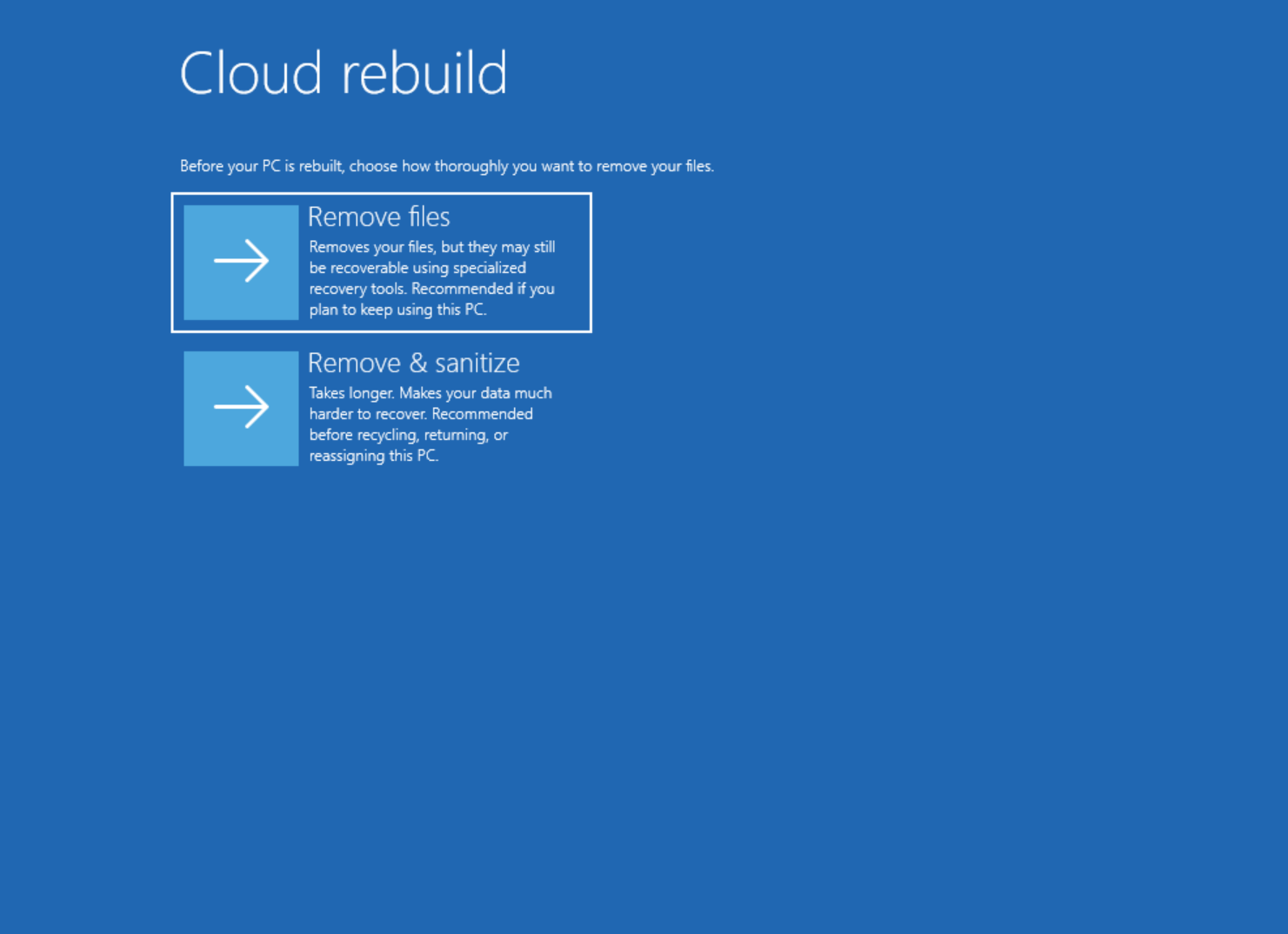
Cloud Rebuild provides two data removal options:
- Remove files: Removes your personal files before reinstalling Windows. This is generally the quicker option when you intend to keep using the computer.
- Remove & sanitize: Uses the storage hardware's supported sanitization capability to make existing data much harder to recover. This is useful when recycling, returning, or giving away your PC.
Step 4: Confirm Windows Installation Details
- Review the Windows version displayed on the screen.
- Check the Windows edition and language.
- Read the data removal warning carefully.
- Confirm that you have backed up your important files.
- Select Continue to proceed with the selected removal option.
Step 5: Start Cloud Rebuild
- Review the final installation information.
- Confirm the selected data removal option.
- Select the final installation or rebuild confirmation button shown on screen.
- Wait while Windows downloads the required installation files.
- Allow the computer to restart whenever necessary.
During this process, Windows downloads a fresh installation image and the necessary drivers. Your computer may restart several times.
Do not turn off your computer or disconnect its power while Cloud Rebuild is running. Interrupting the recovery process could prevent Windows from starting.
Step 6: Complete Windows 11 Setup
After Cloud Rebuild finishes, your computer will start the Windows initial setup experience.
- Select your country or region.
- Choose your preferred keyboard layout.
- Connect to a network if prompted.
- Sign in with your Microsoft account or choose an available account setup option.
- Configure your privacy and device settings.
- Complete the Windows setup process.
- Install any remaining Windows updates.
Congratulations! You have successfully reinstalled Windows 11 without using a USB drive.
What If Windows 11 Cannot Boot?
One of the most useful features of Cloud Rebuild is that it can be started from the Windows Recovery Environment even when Windows cannot boot normally.
If your PC repeatedly fails to start, Windows may automatically enter the recovery environment.
Follow these steps:
- Turn on your computer and allow Windows to attempt startup.
- If Windows repeatedly fails to boot, wait for the Automatic Repair or Windows Recovery Environment screen.
- On the Choose an option screen, select Troubleshoot.
- Open Recovery and uninstall if that option is displayed.
- Select Cloud rebuild.
- Connect to an available internet network.
- Review the Windows installation and data removal information.
- Confirm the operation and wait for the process to finish.
The exact recovery menu wording can vary by Windows build. Follow the available Cloud Rebuild option shown in your recovery environment.
If Windows Recovery Environment is unavailable or Cloud Rebuild cannot start, you may need a Windows recovery drive or installation media as a fallback.
Method 2: Reinstall Windows 11 Using Cloud Download
If Cloud Rebuild is not available on your computer, you can use the traditional Reset This PC – Cloud Download option.
This feature downloads a fresh copy of Windows from Microsoft's servers and uses it to reinstall the operating system.
Steps to Use Cloud Download
- Open Settings using Windows + I.
- Navigate to System > Recovery.
- Find the Reset this PC option.
- Click Reset PC.
- Choose Keep my files or Remove everything.
- Select Cloud download when asked how you want to reinstall Windows.
- Review the selected reset settings.
- Click Next and then confirm the reset.
- Wait for Windows to download and reinstall.
Cloud Download can be useful when local Windows recovery files are damaged or you want to download a fresh Windows copy.
Method 3: Repair Windows 11 Using Windows Update
If Windows is working but you are experiencing system errors, corrupted components, or update-related problems, you may not need a complete reinstall.
Windows 11 includes a recovery option called Fix problems using Windows Update. It reinstalls the current version of Windows while preserving your personal files, applications, and settings.
Steps to Reinstall Windows Using Windows Update
- Open Settings.
- Go to System > Recovery.
- Find Fix problems using Windows Update.
- Click Reinstall now.
- Review the confirmation message.
- Allow Windows to download and reinstall the current version.
- Restart your computer when prompted.
This method is particularly useful when you want to repair Windows without removing installed applications, personal files, or system settings.
Availability may depend on your Windows version, update status, and device configuration.
Cloud Rebuild vs Cloud Download vs Windows Update Repair
Not sure which method to choose? Here's a comparison of the three recovery options.
| Feature | Cloud Rebuild | Cloud Download | Windows Update Repair |
|---|---|---|---|
| Requires USB | No | No | No |
| Internet required | Yes | Yes | Yes |
| Can work when Windows won't boot | Yes, through WinRE | Through recovery, if available | No |
| Removes personal files | Yes | Optional | No |
| Removes installed apps | Yes | Generally yes | No |
| Downloads Windows from Microsoft | Yes | Yes | Yes |
| Best use case | Complete recovery | Windows reset | Repairing Windows |
What to Do After Reinstalling Windows 11
After completing the Windows installation, there are a few important things you should do to get your computer ready for everyday use.
1. Install Windows Updates
Open Settings > Windows Update and click Check for updates. Install the available security updates, quality improvements, and driver updates.
2. Install Device Drivers
Check Device Manager for missing or incorrectly installed drivers. Install the latest drivers from your computer manufacturer's official support website if necessary.
3. Restore Your Personal Files
Restore your documents, photos, videos, and other important data from your external backup or cloud storage account.
4. Reinstall Your Applications
Install the software you regularly use, including browsers, office applications, development tools, and other programs.
5. Check Windows Activation
Open Settings > System > Activation and verify that Windows is activated. If you use a digital license associated with your Microsoft account, sign in with the same account and follow Microsoft's activation troubleshooting steps if necessary.
Common Cloud Rebuild Problems and Solutions
Although Cloud Rebuild simplifies Windows recovery, you may encounter problems during installation. Here are some common errors and their possible solutions.
Error 0x800704C6 – No Internet Connection
This error indicates that the computer cannot connect to the internet.
- Connect an Ethernet cable if possible.
- Check your Wi-Fi connection and password.
- Restart your router if necessary.
- Retry Cloud Rebuild after establishing an internet connection.
Error 0xc1900200 – Windows 11 Requirements Not Met
This error can indicate that your computer does not meet Windows 11 requirements. One possible cause is a disabled Trusted Platform Module (TPM).
- Enter your computer's BIOS or UEFI settings.
- Look for TPM, Intel PTT, or AMD fTPM settings.
- Enable the appropriate security feature if supported.
- Save your settings and try again.
Error 0xc1900224 – Required Driver Unavailable
This error indicates that a required device driver is unavailable through Windows Update.
- Check your computer manufacturer's support website.
- Look for the appropriate recovery or driver package.
- Contact the manufacturer if the required driver cannot be found.
- Consider using manufacturer recovery media or Windows installation media as an alternative.
Frequently Asked Questions (FAQs)
1. Can I reinstall Windows 11 without a USB drive?
Yes. Windows 11 offers several built-in recovery options, including Cloud Rebuild, Cloud Download, and Windows Update repair. These methods can reinstall or repair Windows without requiring a bootable USB drive.
2. What is Cloud Rebuild in Windows 11?
Cloud Rebuild is a Windows recovery feature that downloads a fresh Windows image and the required device drivers from Windows Update. It can reinstall Windows even when the existing operating system cannot boot.
3. Will Cloud Rebuild delete my files?
Yes. Cloud Rebuild removes personal files, user accounts, installed applications, and settings from your PC. Back up important data before using it. Files already synchronized with OneDrive or another cloud service are not removed from that cloud account.
4. Can I reinstall Windows 11 without an internet connection?
Cloud Rebuild and Cloud Download require an internet connection because they download Windows installation files. If you do not have internet access, you may need local recovery files or external installation media.
5. Is Cloud Rebuild better than Reset This PC?
Cloud Rebuild is designed for a more complete recovery, including situations where Windows cannot boot. Reset This PC offers more flexibility because it can preserve personal files. The better choice depends on your recovery requirements.
6. Can I use Cloud Rebuild if Windows 11 is not starting?
Yes, provided the Windows Recovery Environment is available and your device supports Cloud Rebuild. You can launch the feature from the recovery menu without entering the normal Windows desktop.
7. How long does Cloud Rebuild take?
The time depends on your internet speed, computer hardware, Windows download size, and whether you choose data sanitization. The process can take a considerable amount of time, so keep your PC connected to power and avoid interrupting it.
Final Thoughts
Reinstalling Windows 11 without a USB drive is now easier with Microsoft's built-in recovery features. Cloud Rebuild is particularly useful because it can download a fresh Windows installation and the required device drivers directly from Windows Update, even when the existing Windows installation cannot start.
If you simply want to repair Windows while keeping your applications and personal files, the Windows Update repair option may be a better choice. For a traditional reset, Cloud Download is another convenient alternative.
Before using any recovery method, always back up your important data and carefully review the options on screen.
Which method do you prefer for reinstalling Windows 11? Let us know in the comments below.
Frequently Asked Questions
Is this guide beginner friendly?
Yes. This tutorial is written step-by-step for beginners.
Does this work in 2026?
Yes. This article is updated regularly with latest changes.
Where can I learn more?
Browse more tutorials on LoopGuy.





Comments (0)
No comments yet. Be the first to comment!
Leave a Comment