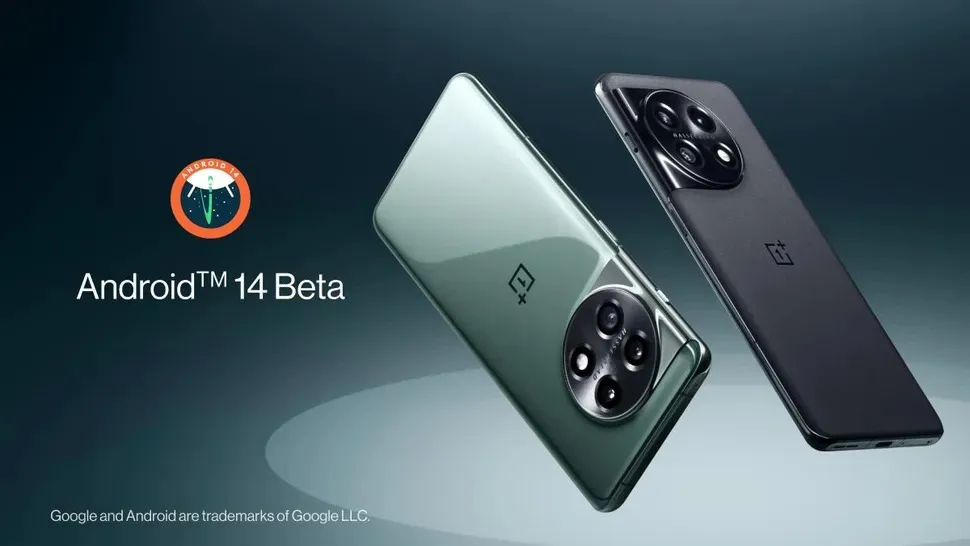
Mastering Android 14: 15 Hidden Features and Essential Tips
Mastering Android 14: Hidden Features and Essential Tips
Android 14 introduced several useful improvements that make smartphones more personal, secure, accessible, and easier to use. However, many users only explore the basic settings and miss some of the features hidden inside their devices.
Whether you use a Google Pixel, Samsung Galaxy, Xiaomi, OnePlus, or another Android smartphone, this guide will help you explore important Android 14 features, discover useful settings, and get more out of your device.
1. Customize Your Lock Screen
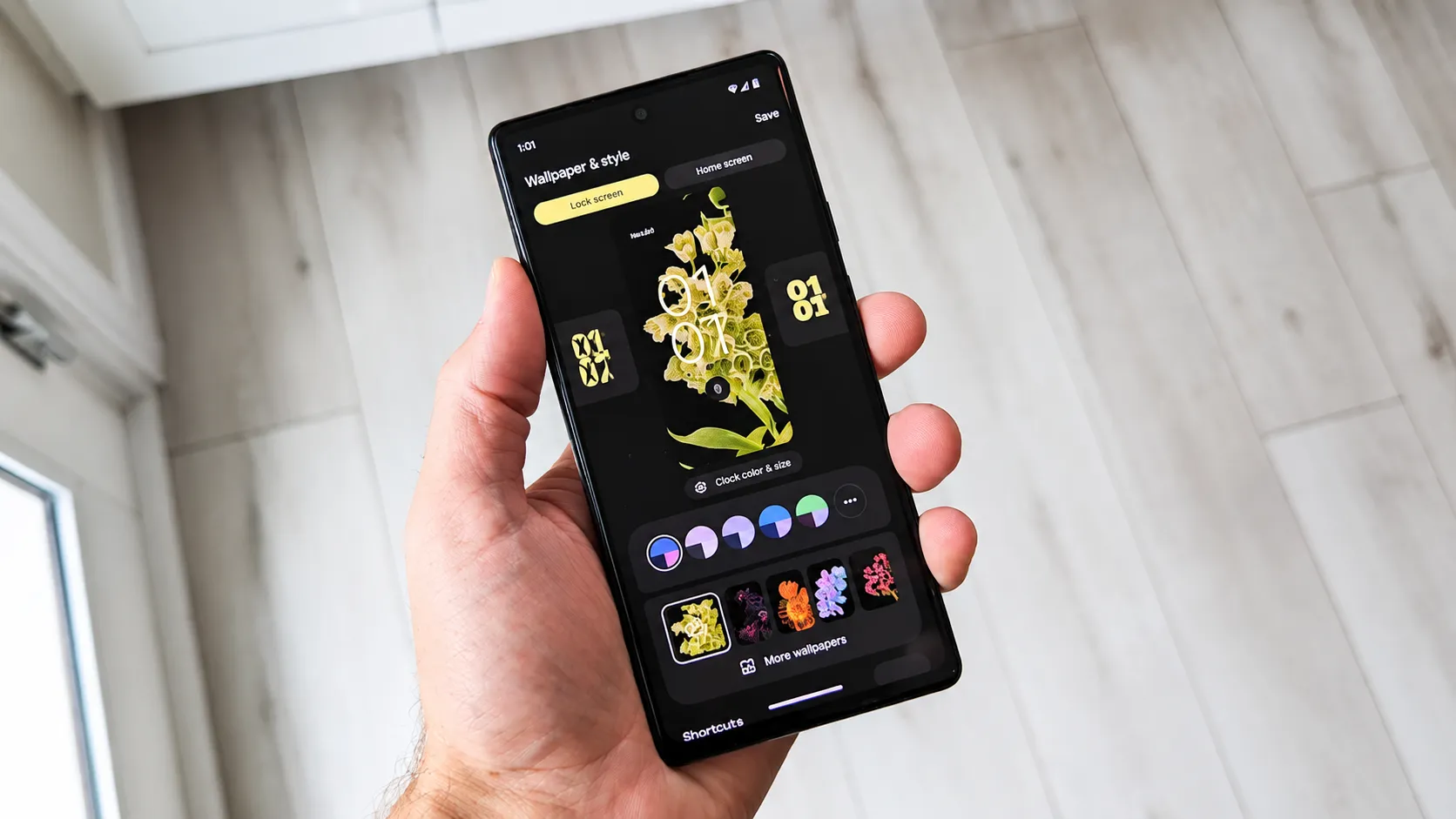
Android 14 introduced improved lock-screen customization, allowing supported devices to personalize their appearance with different clock styles, colors, wallpapers, and shortcuts.
On supported Pixel devices, you can also add useful shortcuts to the lock screen, such as a QR code scanner or smart home controls.
How to customize your lock screen:
- Open Settings on your phone.
- Go to Wallpaper & style.
- Open the lock-screen customization options.
- Choose a clock style, color, and wallpaper.
- If available, configure your preferred lock-screen shortcuts.
- Tap Done or Apply to save your changes.
This feature makes your phone look more personal while keeping important shortcuts easily accessible.
2. Use AI-Generated Wallpapers

One of the more interesting Android 14 additions is generative AI wallpaper creation. On supported Pixel devices, you can create unique wallpapers by choosing suggested prompts and visual styles.
Instead of downloading a wallpaper from the internet, you can generate a design based on your preferred subject, colors, and artistic style.
How to try AI wallpapers:
- Open Settings.
- Select Wallpaper & style.
- Choose More wallpapers or the AI wallpaper option, if available.
- Select a suggested theme or prompt.
- Choose a generated design and apply it.
3. Give Apps Access to Selected Photos Only
Privacy is one of the most important improvements in Android 14. The Selected Photos Access feature allows supported apps to access only the photos and videos you choose instead of your entire media library.
For example, if an application needs a picture for your profile, you can select that specific image without giving it access to every photo stored on your phone.
How to manage photo permissions:
- Open Settings.
- Go to Apps.
- Select the application you want to manage.
- Open Permissions.
- Tap Photos and videos.
- If supported, choose selected photos instead of allowing full access.
This is especially useful when using social media, editing, and photo-sharing applications.
4. Enable Flash Notifications

If you frequently miss incoming calls or notifications, Android 14 offers visual notification options on supported devices. You can use the camera flash or screen flash to alert you when a notification arrives.
How to enable flash notifications:
- Open Settings.
- Go to Notifications or Accessibility.
- Find Flash notifications.
- Enable Camera flash, Screen flash, or both if available.
- Choose a screen-flash color if your device offers that option.
This feature can be particularly helpful in noisy environments or for people who prefer visual alerts.
5. Improve Security with a Six-Digit PIN

Android 14 encourages users to choose a six-digit or longer PIN for better device security. On supported devices, you can also enable automatic confirmation after entering a correct PIN of six or more digits.
How to change your screen-lock PIN:
- Open Settings.
- Go to Security & privacy or Lock screen.
- Select Screen lock.
- Enter your current PIN or password.
- Choose PIN and create a six-digit or longer PIN.
- If available, enable the automatic confirmation option.
6. Explore Ultra HDR Photography

Android 14 introduced support for Ultra HDR images. This technology helps supported cameras and displays capture and show photos with brighter highlights, richer colors, and more detailed shadows.
Ultra HDR is particularly useful for landscape photography, bright outdoor scenes, and images with a wide range of lighting conditions.
How to use Ultra HDR:
- Check whether your phone camera supports Ultra HDR.
- Open your camera application.
- Look for an HDR or Ultra HDR option, if your camera provides one.
- Enable the setting when available.
- Take a photo and view it on a compatible HDR display.
Remember that Android 14 support alone does not guarantee Ultra HDR functionality. Camera hardware, software, and display compatibility also matter.
7. Use Health Connect to Manage Health Data

Health Connect provides a central place for compatible health and fitness applications to share data with your permission. Android 14 integrated Health Connect into the system experience on supported devices.
Instead of managing every application's health permissions separately, you can use Health Connect to review which apps can access particular categories of health information.
How to access Health Connect:
- Open Settings.
- Search for Health Connect.
- Open its settings.
- Review the connected applications and available data permissions.
- Allow only the applications you trust to access your health information.
Health Connect availability and supported data categories depend on your device and installed applications.
8. Check App Location Data Sharing
Android 14 provides additional information about how applications use and share location data. When an application requests location permission, supported permission screens can show information about third-party data sharing.
This helps you make a more informed decision before allowing an application to access your location.
Essential privacy tips:
- Review location permissions regularly.
- Choose approximate location when precise location is unnecessary.
- Allow location access only while using an application when possible.
- Remove location permission from applications that do not need it.
To review permissions: Open Settings → Security & privacy → Privacy → Permission manager → Location. Menu names may vary between manufacturers.
9. Make Text Easier to Read with Larger Fonts

Android 14 improves accessibility with non-linear font scaling, supporting text enlargement up to 200%. This helps people who need larger text without unnecessarily enlarging every element at the same rate.
How to increase font size:
- Open Settings.
- Go to Display & touch or Display.
- Select Display size and text.
- Adjust the font-size slider.
- Enable bold text or other readability options if available.
You can also use the accessibility magnification feature to zoom into parts of your screen.
10. Use the Monochrome Theme
If you prefer a simple and distraction-free appearance, Android 14 introduced a monochromatic theme option on supported devices. It gives compatible interface elements a more grayscale appearance.
How to try it:
- Open Settings.
- Select Wallpaper & style.
- Open the color or theme settings.
- Choose a monochromatic or grayscale-style option if available.
- Apply the theme.
This can give your phone a cleaner appearance, although it does not necessarily turn every application or image into black and white.
11. Manage Background App Permissions
Too many applications running unnecessary background activities can affect battery life, performance, and privacy. Android provides settings that help you review application activity and restrict unnecessary access.
What you can do:
- Uninstall applications you no longer use.
- Review apps that have permission to run in the background.
- Restrict unnecessary background activity where your phone provides the option.
- Review battery usage to identify applications consuming excessive power.
How to check battery usage: Open Settings → Battery → Battery usage. The exact menu may differ depending on your phone.
12. Use Battery Saver More Effectively

Battery Saver can help extend your phone's battery life when you are away from a charger. Depending on the device, it can reduce background activity, limit certain visual effects, and change how applications behave.
How to enable Battery Saver:
- Open Settings.
- Select Battery.
- Tap Battery Saver.
- Turn it on or configure automatic activation if available.
You can also access Battery Saver through Quick Settings on many Android phones. Keep in mind that some notifications and background synchronization may be delayed while it is active.
13. Customize Quick Settings
Quick Settings provides shortcuts to commonly used phone controls, such as Wi-Fi, Bluetooth, Airplane mode, Flashlight, and Battery Saver.
Organizing these shortcuts can save time and make frequently used features easier to access.
How to customize Quick Settings:
- Swipe down from the top of your screen twice.
- Tap the pencil or edit icon if available.
- Drag tiles to rearrange them.
- Add useful available tiles or remove ones you rarely use.
- Finish editing and test your new layout.
The available tiles and editing method vary by phone manufacturer.
14. Improve Accessibility with Magnification
Android 14 improves the magnification experience with more intuitive controls. On supported devices, you can zoom in and out using gestures and configure magnification behavior to make small text and interface elements easier to see.
How to enable magnification:
- Open Settings.
- Go to Accessibility.
- Select Magnification.
- Enable the magnification shortcut.
- Use the configured shortcut or gesture to zoom in and out.
- Explore options such as keeping magnification active when switching apps, if available.
This feature can be useful when reading small text, viewing detailed images, or navigating applications.
15. Review Your Privacy Dashboard Regularly
Your phone contains personal information, including contacts, photos, microphone access, camera access, and location data. Reviewing application permissions regularly is an important way to protect your privacy.
How to review app permissions:
- Open Settings.
- Go to Security & privacy or Privacy.
- Open Privacy dashboard if available.
- Review which applications have accessed sensitive permissions.
- Open Permission manager to change access when necessary.
Pay particular attention to camera, microphone, location, contacts, and photo permissions.
Essential Android 14 Tips You Should Follow
Beyond the individual features, these simple habits can help you maintain a safer and smoother Android experience:
- Keep your phone updated: Install available security updates and system updates.
- Use a strong screen lock: Choose a secure PIN, password, or supported biometric method.
- Review app permissions: Do not give applications access to information they do not need.
- Remove unused apps: Uninstall applications you no longer use.
- Use trusted app sources: Prefer Google Play and trusted developers.
- Back up important files: Keep important photos, contacts, and documents backed up.
- Check battery usage: Investigate applications that consume unusually high amounts of power.
Final Thoughts
Android 14 offers more than a visual update. Its improvements to privacy, customization, photography, accessibility, and security can make everyday smartphone use more convenient and controlled.
Features such as selected photo access, flash notifications, lock-screen customization, Ultra HDR, and Health Connect are worth exploring if your device supports them.
Start by checking which features are available on your smartphone, adjust the settings that are useful to you, and keep your device updated. With the right configuration, you can get much more out of your Android experience.
Official Android Resources
Frequently Asked Questions
Is this guide beginner friendly?
Yes. This tutorial is written step-by-step for beginners.
Does this work in 2026?
Yes. This article is updated regularly with latest changes.
Where can I learn more?
Browse more tutorials on LoopGuy.





Comments (0)
No comments yet. Be the first to comment!
Leave a Comment